


Veeam Recovery Orchestrator Knowledge Base
Activation of external systems via Veeam Recovery Orchestrator
Within elaborate disaster recovery procedures, it may be necessary to activate external systems or perform tasks via scripts in order to prepare the DR site for failover.
These scripts may be run in several ways:
- manual execution of the script when needed
- adding the scripts to the Windows task scheduler
- running the scripts in a Veeam Recovery Orchestrator recovery plan
Running scripts on a recovery plan has the following benefits:
- management of the DR plan becomes more efficient, as all its components are integrated within the orchestrator
- it provides a centralized location for script collection, allowing for straightforward execution and quick modifications when necessary
- it enables tracking the plan’s execution and run times, potentially revealing areas for improvement
- lastly, it automates the procedure, reducing the need for manual operation and therefore minimizing the risk of human error
VRO has a built-in capability to add and execute customs scripts, as documented in the user guide.
Usually custom scripts are used in the pre-plan steps section of a recovery plan, but this approach lacks flexibility: what if only a specific application needs to fail over, but it does not include the script? Or should the script be included in every plan?
So it may come in handy to have a separate and dedicated plan, easily identifiable and executable, specifically for the preparation of the DR site.
Creating “dummy” recovery plans to run scripts and actions
A Restore Plan is required to configure the script for execution, even though no recovery will take place.
Just follow the user guide about Creating Restore Plans.
At the Inventory Groups step choose vSphere backups and any supported workload using vSphere tags or Veeam jobs: it doesn’t matter which, as it will removed anyway after the plan has been created.
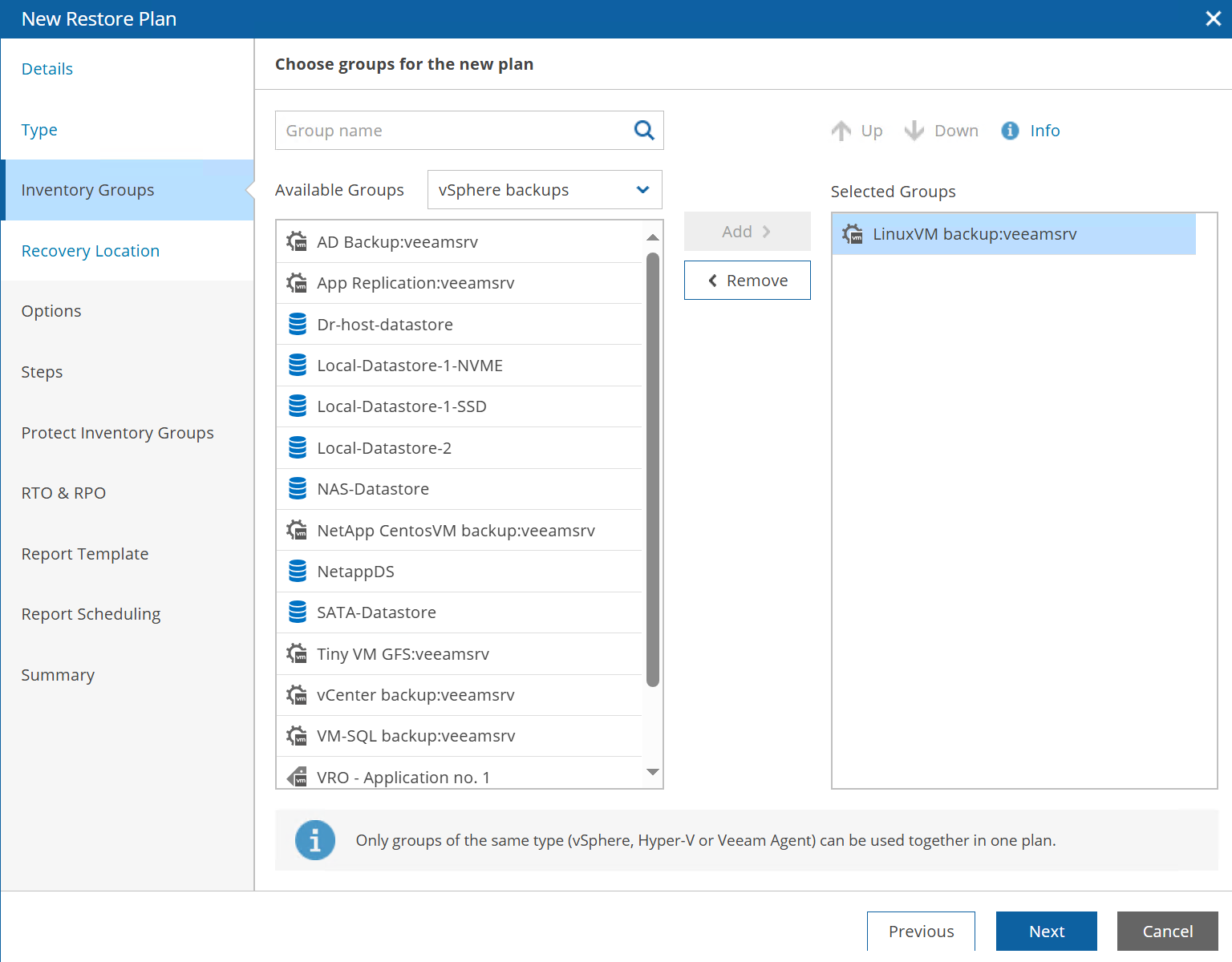
Just keep any other option as default, but disable the schedules under Report Scheduling, then finalize the plan creation.
Once in the main screen under Recovery Plans, right click the plan and select Edit.
Select the main group with the vSphere tag or Veeam job name, and click Delete.
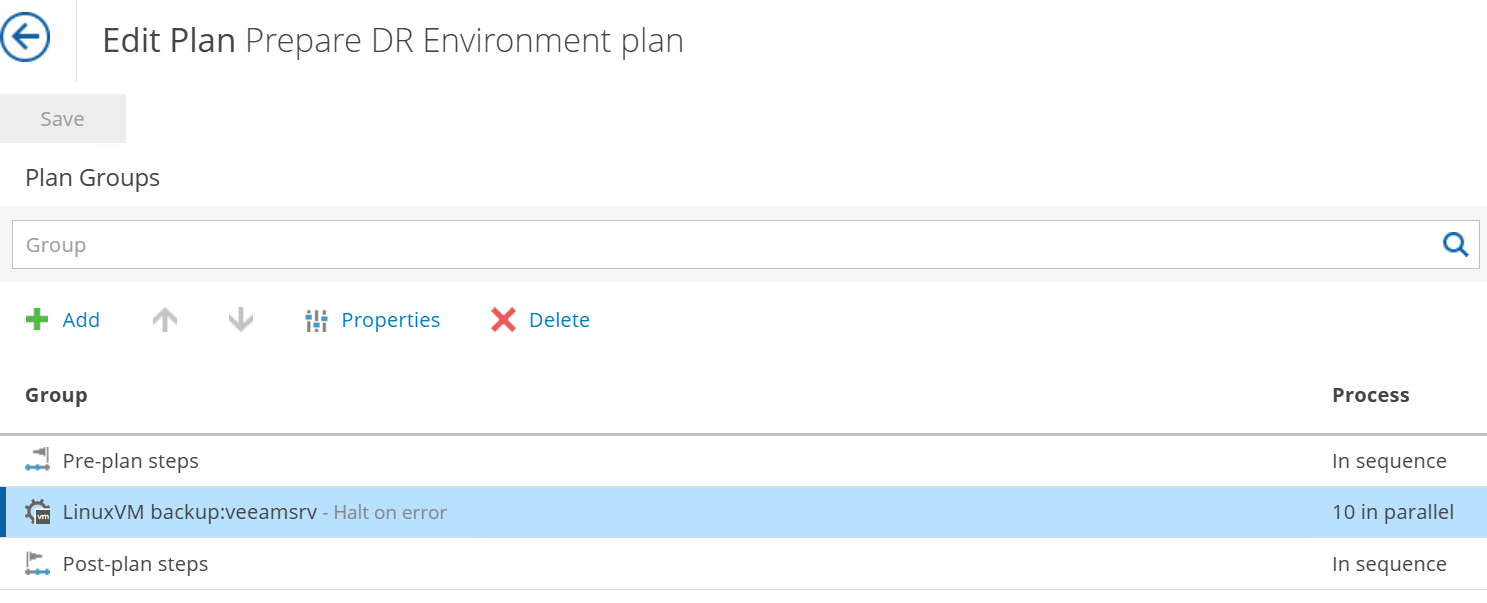
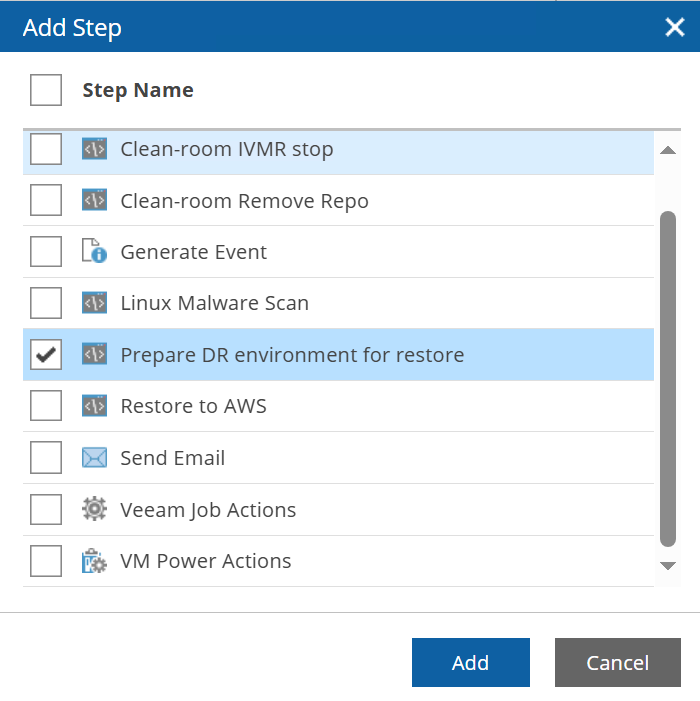
You can now select the Pre-plan steps, and under the Steps section on the right, click Add and select the script.
The plan should look like this:
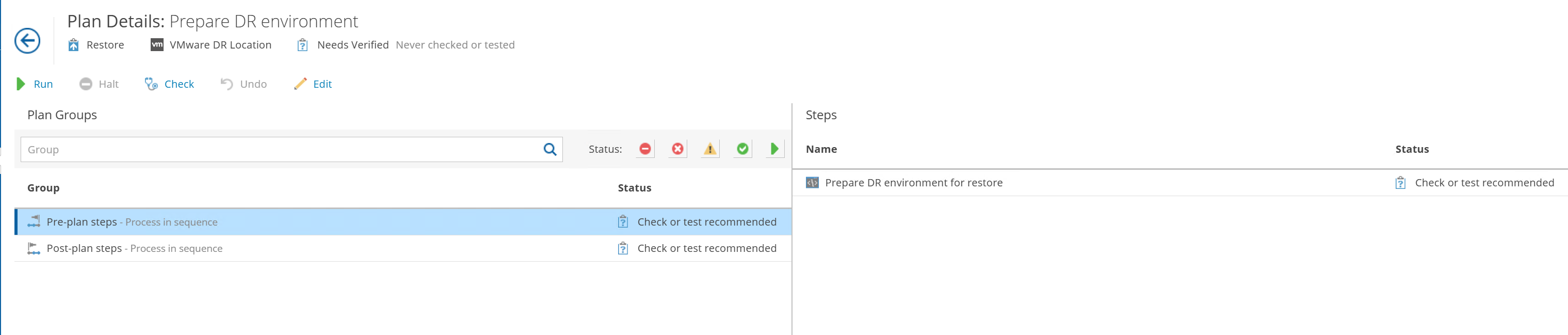
Verify the step parameters to make sure everything is correct, then you can click the Save button.
The plan can be run on request, but it may also be cloned and set as a master plan (check master plan section for more information).
After the plan has been executed it must be reset to be started again, same as any other restore plan.