


Veeam Recovery Orchestrator Knowledge Base
VRO Malware Scan
Starting Veeam Backup & Replication v12.3 Veeam has introduced the Threat Hunter, a signature based scan engine that can be used instead of any third part antivirus software.
Veeam Recovery Orchestrator can also leverage Threat Hunter for scanning the backups during tests or prior recovery, but it’s only enabled by default on new installations.
For existing installations prior to the Threat Hunter introduction, that have been upgraded to VRO 7.2, it should be enabled manually by accessing the Malware Detection settings in the embedded VBR, and selecting Veeam Threat Hunter as the Detection Engine.
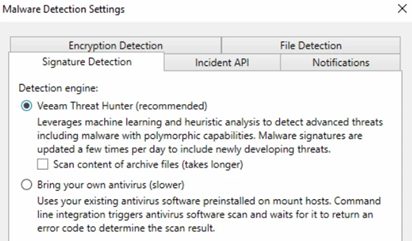
The Threat Hunter will then be used by the embedded VRO in case the production backup server is not available.
Mount Server considerations
VRO is installed as an all-in-one deployment with all the components of the embedded VBR (backup server, proxy server, mount server) in a single server.
This is normally fine as the Orchestrator leverages, when available, the production VBR and mount servers.
However, if the production VBR is offline, VRO allows to perform recovery operations taking advantage of its own infrastructure. In this scenario, the all-in-one model may not be enough.
Malware scanning is performed by mount servers, so if several concurrent operations are required the amount of mount servers associated with backup repositories should be configured accordingly.
More about this topic on the sizing recommendations page.
Threat Hunter in dark sites / clean rooms
Backup scanning in an isolated environment is essential to make sure backups are clean and free from any potential threat, but it may pose a challenge to get antivirus signature updates because typically only a few connections are allowed.
In order to get malware signature updates, the Veeam Threat Hunter requires an internet connection for the backup server and the mount server as well (check Veeam Threat Hunter Limitations).
The minimum required is to allow the following incoming connections:
- From the backup server to the Veeam License Update Server on port 443.
- From the mount server to the Veeam Signature Update Server on port 443.
For environments without direct internet connection, the recommendation is to use an Internet Proxy for retrieving the Threat Hunter Signature Updates.
You can either use a system-wide proxy (Veeam KB3090 + Veeam KB1975) or configure internet proxy settings only for the Veeam Threat Hunter Service using a registry key:
Key Location: HKLM\SOFTWARE\Veeam\Veeam Threat Hunter\
Value Name: VTHInternetProxy
Value Type: String Value (REG_SZ)
Value Data: <proxy>:<port>