


Veeam Backup & Replication Best Practice Guide
Magic Ports
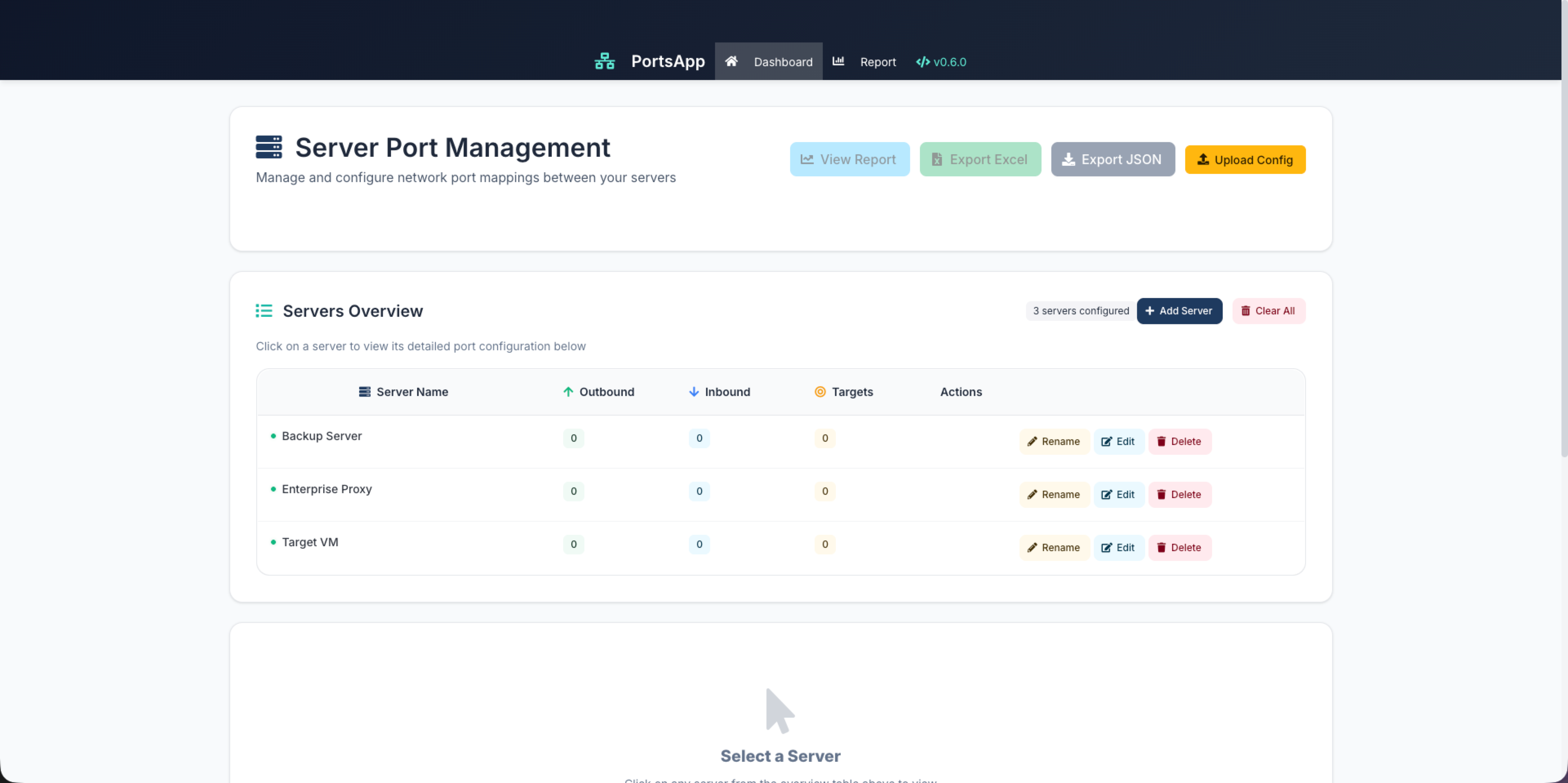
In order to access Magic Ports please navigate to Magic Ports.
Note: Magic Ports (aka PortsApp) is a community-built tool and is not an official Veeam product. It is provided as-is, and errors or omissions are accepted.
What is Magic Ports?
Magic Ports brings together all the required ports from across the Veeam Help Center into a single location, so you don’t have to hunt through multiple product guides to identify the ports required between components. The port data is scraped directly from the Help Center on a regular schedule, covering Veeam Backup & Replication (VMware and Hyper-V), Agent Management, Explorers, VCC, VONE, VSPC, VRO, VB365, the cloud-native backup products (AWS, Azure, GCP), AHV, OLVM/RHV, Proxmox, and the Veeam Agents.
Unlike a static table, Magic Ports lets you build up a full picture of a design: add each server in the environment, map the ports required between them, and then review, export, or diagram the result.
The tool is open source:
- Frontend (Angular): github.com/shapedthought/portsApp
- Backend (FastAPI/SQLite): github.com/shapedthought/ports_server
How it works
1. Add your servers
From the main dashboard, use Add Server to add each server or role in your design. The overview table lists every server you’ve added along with a running count of its outbound ports, inbound ports, and target servers, and lets you rename, edit, or delete a server directly from the table.
Clicking on a server in the table shows its detailed configuration below: an Outbound Connections table (target server, ports, and protocol) and an Inbound Connections table (source server, ports, and protocol), each with a rolled-up summary of the TCP and UDP ports involved.
2. Map the ports for a server
Selecting Edit on a server opens a three-step wizard:
- Server & Product — confirm the server name and choose the Veeam product it represents (e.g. VBR, VB365, VBAWS, VSPC).
- Service Selection — pick a source service for that product, then choose from the list of available target services. The target list can be filtered by keyword, protocol (TCP/UDP), or category, and shows the port, protocol, and a description for each service. Choose the target server and press Add to create the mapping.
- Review — see every mapping added for the server, change the target server per mapping if needed, remove any mapping, and save the configuration once complete.
3. View the report
The View Report button summarizes every mapping across every server, with two views:
- Table view — a sortable, filterable table of all mappings, with global search and a CSV export.
- Diagram view — an automatically generated network diagram (built with Mermaid) showing servers and the ports flowing between them. You can change the layout direction, toggle port numbers/protocols/compact mode, and export the diagram as SVG or PNG, or copy the underlying Mermaid code.
4. Export and share your configuration
- Export Excel generates an Excel workbook of the full configuration.
- Export JSON downloads the current configuration as a JSON file, which can be shared or kept as a record of the design.
- Upload Config loads a previously exported JSON file back into the tool, so a configuration can be picked up again later or shared with someone else.
Using Magic Ports with an AI assistant (MCP)
Magic Ports also has a Model Context Protocol (MCP) server, which lets you query port requirements and build out a design in natural language from an MCP-compatible AI assistant such as Claude Desktop or Claude Code / VS Code. You can ask things like “What ports does VBR v13 need?”, “Which products use port 902?”, or “Generate firewall rules for my VBR environment — I have a VBR server, a Linux proxy, a repo server, and ESXi hosts managed by vCenter”, and have it produce a JSON file compatible with the Upload Config option above, so the design can be brought straight into Magic Ports.
- Repo: github.com/shapedthought/veeam-ports-mcp
- Blog walkthrough: Veeam Ports MCP Server
Note: this integration is newer and evolving alongside the rest of the toolset, so treat its output as a starting point and double-check it before relying on it.